


Google Authenticator is a free Google app that generates one-time codes (TOTP — Time-based One-Time Passwords) for 2FA (two-factor authentication). It works like this: when you switch it on, the app and the server (e.g. Facebook) share a secret key. From then on, both generate the same 6-digit code every 30 seconds, based on a timestamp. It needs no internet connection, so it works anywhere.
Microsoft reports that multi-factor authentication (MFA) blocks the vast majority of automated attacks on accounts. Put simply, an account with 2FA is a much harder target for a hacker. Through Facebook Protect, Facebook already requires 2FA for high-risk accounts, and in a Business Portfolio admins can make it mandatory for everyone with access.
In this complete guide you will learn: how Google Authenticator (TOTP) works technically, how it compares with Authy, Microsoft Authenticator and 1Password, step-by-step 2FA setup on Facebook in 2026, cloud sync (a feature added in 2023), passkeys vs 2FA (the future), backup & recovery codes, and how to protect yourself from SIM swap attacks.
How Google Authenticator Works (TOTP Explained)
Google Authenticator is built on the TOTP (Time-based One-Time Password) standard defined in RFC 6238. There is nothing ‘magic’ about it: it is a mathematical algorithm that runs both on your phone and on the servers of Facebook (or whichever service you have enabled it for). Here are the 5 steps of how it works:
Step 1: Setup — Exchanging the Secret Key
When you enable 2FA with Google Authenticator on a service (e.g. Facebook), the service generates a secret key, usually 16 base32 characters (e.g. JBSWY3DPEHPK3PXP). It appears on screen as a QR code. You scan the QR code with the Google Authenticator app → the app stores the key locally.
Step 2: Time Sync
Both sides (the Google Authenticator app and the Facebook server) use the same Unix timestamp (the number of seconds since 1/1/1970). They divide it by 30 (= the time step). This means that every 30 seconds there is a new ‘time slot’.
Step 3: HMAC-SHA1 Calculation
Using the secret key and the current timestamp as input, an HMAC-SHA1 hash is calculated. This produces a 20-byte hash, which is then shortened to a 6-digit code (truncation algorithm).
Step 4: Display
The Google Authenticator app shows the 6-digit code. The code is the same on every device that has the same inputs (key + time), which is why it works without internet.
Step 5: Verification
When you log in to Facebook, you enter the 6-digit code. The Facebook server performs exactly the same calculation (HMAC-SHA1 with the secret key it holds). If the two codes match → access granted. If not → rejected.
Why It Is Secure
- The secret key is NEVER transmitted again after the initial setup
- Codes expire after 30 seconds, even if someone sees them
- No internet needed, so it cannot be intercepted through a network attack
- HMAC-SHA1 is a cryptographically secure function
Authenticator Comparison
Google Authenticator is the most popular choice, but there are 5 genuinely good alternatives. Here is a detailed comparison:
| App | Cloud Sync | Multi-Device | Open Source | Best for |
|---|---|---|---|---|
| Google Authenticator | ✓ (since Apr 2023) | ✓ | ❌ | Mass-market use |
| Authy (Twilio) | ✓ | ✓ | ❌ | Power users |
| Microsoft Authenticator | ✓ | ✓ | ❌ | Microsoft 365 users |
| 1Password (built-in TOTP) | ✓ | ✓ | ❌ | Password manager users |
| Aegis Authenticator (Android) | Local backup | Manual | ✓ | Privacy-focused |
| Bitwarden (built-in TOTP) | ✓ | ✓ | ✓ | Open-source advocates |
WebMate Recommendation
- For most users: Google Authenticator (simple, reliable, and now with cloud sync)
- For multi-device users: Authy (best cross-device sync)
- For the Microsoft 365 ecosystem: Microsoft Authenticator (best integration)
- For password manager users: 1Password or Bitwarden (all in one)
- For privacy-focused users: Aegis (Android only, open source)
Google Authenticator Cloud Sync (2023+): What Changed
Before April 2023, Google Authenticator had a huge problem: if you lost your phone, you lost ALL your keys. You had to contact each service separately to recover access. In April 2023 Google fixed this with cloud sync through your Google Account.
How to Turn It On
- Open the Google Authenticator app
- Tap the profile icon (top right)
- Select ‘Sync to Google Account’
- Sign in with your Google account
- From then on, your keys sync automatically
Important Notes
- ✓ Works on iOS and Android
- ✓ Free
- ✓ Syncs to every device where you are signed in with the same Google account
- ⚠️ Trade-off: one more account exposure point (your Google account)
- ⚠️ For maximum security: combine it with a passkey on your Google account
How to Enable 2FA on Facebook
In recent years Facebook has changed the 2FA setup screens quite a bit. The process now runs through the Meta Accounts Center, which brings Facebook, Instagram and Threads together:
Setup Step-by-Step (Web Version)
- Log in at facebook.com
- Click your profile picture (top right) → Settings & privacy → Settings
- Sidebar: Accounts Center
- Click Password and security
- Click Two-factor authentication
- Choose the account (Facebook / Instagram / Threads)
- Choose a method: Authentication app (RECOMMENDED), Text message or Security key
- Scan the QR code with the Google Authenticator app
- Enter the 6-digit code to confirm
- ✓ Done! 2FA active
Setup Step-by-Step (Mobile App)
- Open Facebook app
- Tap the menu (3 lines)
- Settings & Privacy → Settings
- Accounts Center → Password and security
- Same process as above
Important: Save Your Recovery Codes!
Once 2FA is on, Facebook gives you a list of recovery codes. Each one works only once, and they let you log in EVEN WITHOUT access to your authenticator app. Save them:
- Print them and keep a physical copy
- Save them in a password manager (1Password, Bitwarden)
- NEVER send them by email or messenger (insecure)
Passkeys vs 2FA: The Future of Digital Security
In 2026 the tech industry is moving en masse towards passkeys, a newer authentication method that replaces passwords + 2FA with a single simple action. Google, Apple, Microsoft and Meta already support passkeys. Here is what that means:
What Is a Passkey?
A passkey is a cryptographic key stored on your device (iPhone, Android, Windows Hello). When you log in to a service, your device automatically completes a cryptographic challenge, so you never type a password or a 2FA code. Just Face ID / Touch ID / PIN and you are in.
Passkeys vs Traditional 2FA
| Aspect | Traditional 2FA | Passkeys |
|---|---|---|
| Password | Required | None |
| Phishing-proof | ❌ (codes can be stolen) | ✓ Fully |
| SIM swap risk | ❌ For SMS 2FA | ✓ None |
| User Experience | Typing a code | Face/Touch ID |
| Cross-device sync | ✓ With cloud sync | ✓ Apple/Google/Microsoft |
| Backup | Recovery codes | Cloud backup automatic |
How to Enable a Passkey on Facebook
- Settings → Accounts Center → Password and security
- Tap ‘Passkeys’
- Tap ‘Create passkey’
- Authenticate with Face ID / Touch ID / device PIN
- ✓ Passkey saved on your device
WebMate Recommendation
Whenever possible, use a passkey instead of 2FA. It is more secure, easier, and replaces both your password and 2FA. Still, keep 2FA as a backup method in case you lose all your devices.
The 5 Types of 2FA Attacks & How to Protect Yourself
1. SIM Swap Attack
A hacker persuades your mobile provider (in Greece, Cosmote/Vodafone/Nova) to move your number to their own SIM. They then receive your SMS 2FA codes.
Protection:
- DON’T use SMS 2FA; use only an authenticator app or a passkey
- Ask your provider for a ‘SIM lock’ (a code required to change SIM)
- If the service allows it, turn on email-based verification
2. Phishing
A fake Facebook login page asks you for both your password and your 2FA code. The hacker enters them on the real Facebook in real time. Real-time phishing is easier than you think.
Protection:
- Always check the URL before entering your credentials (facebook.com, not faceb00k.com)
- Use a password manager (1Password, Bitwarden): it will not autofill on the wrong site
- Passkeys are phishing-proof by design, so always prefer them
3. Malware on Device
A keylogger or spyware on your phone or computer reads the authenticator app screen or your keystrokes.
Protection:
- Always keep your operating system and apps updated
- Use reputable antivirus software (Windows Defender is usually enough)
- Don’t install apps from unknown sources
4. Brute Force with SMS Bombing
A hacker repeatedly requests SMS codes until your account gets locked, then uses social engineering on Facebook to ‘recover’ it.
Protection: use an authenticator app instead of SMS.
5. Recovery Code Theft
If you store recovery codes in email or the cloud, a hacker may get access to them.
Protection:
- Save them in an encrypted password manager (1Password, Bitwarden)
- Print them and hide them somewhere safe (not near your computer)
- NEVER in a plain-text email or a notes app
How to set up 2FA on Facebook
Log in to your Facebook account.
Select Settings and privacy, then Settings
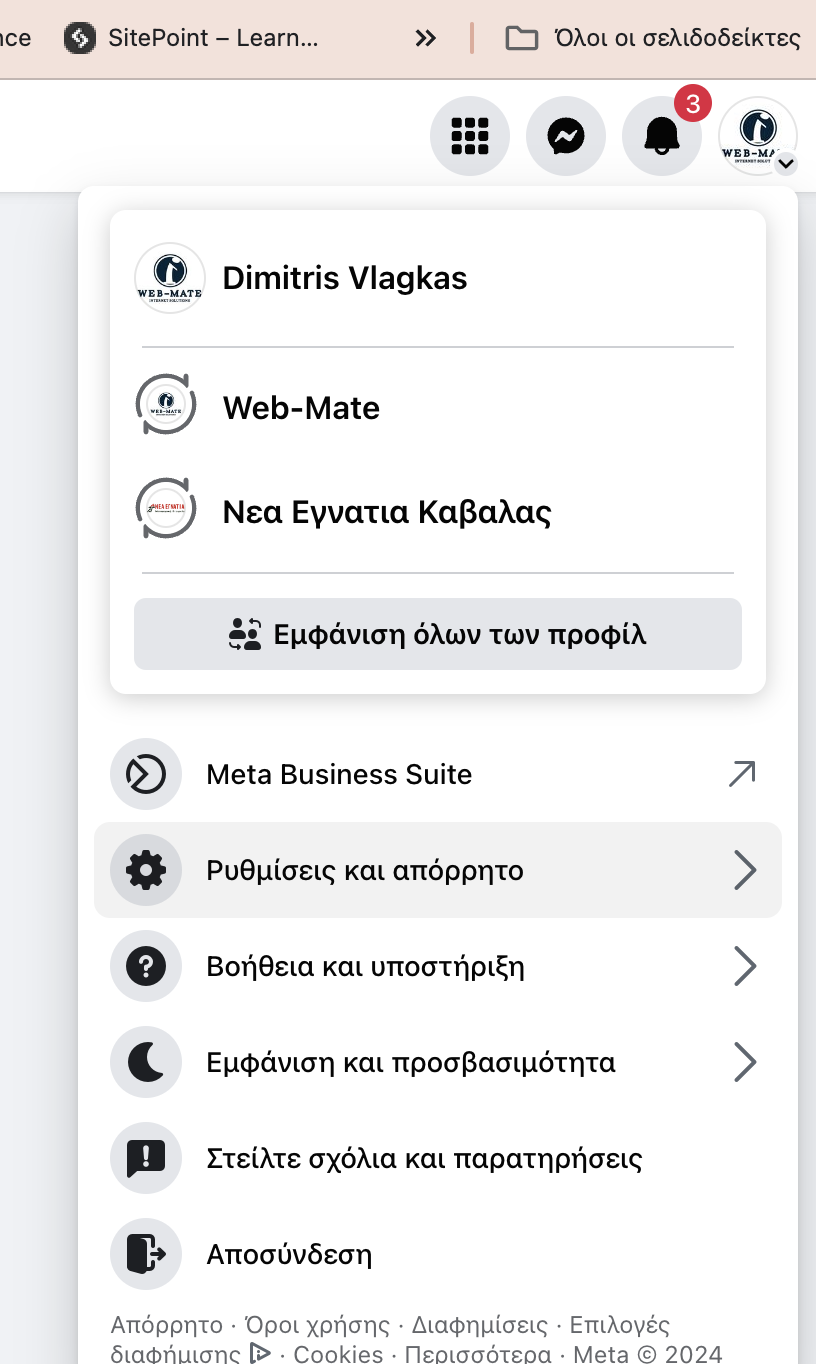
Then tap Accounts Center.
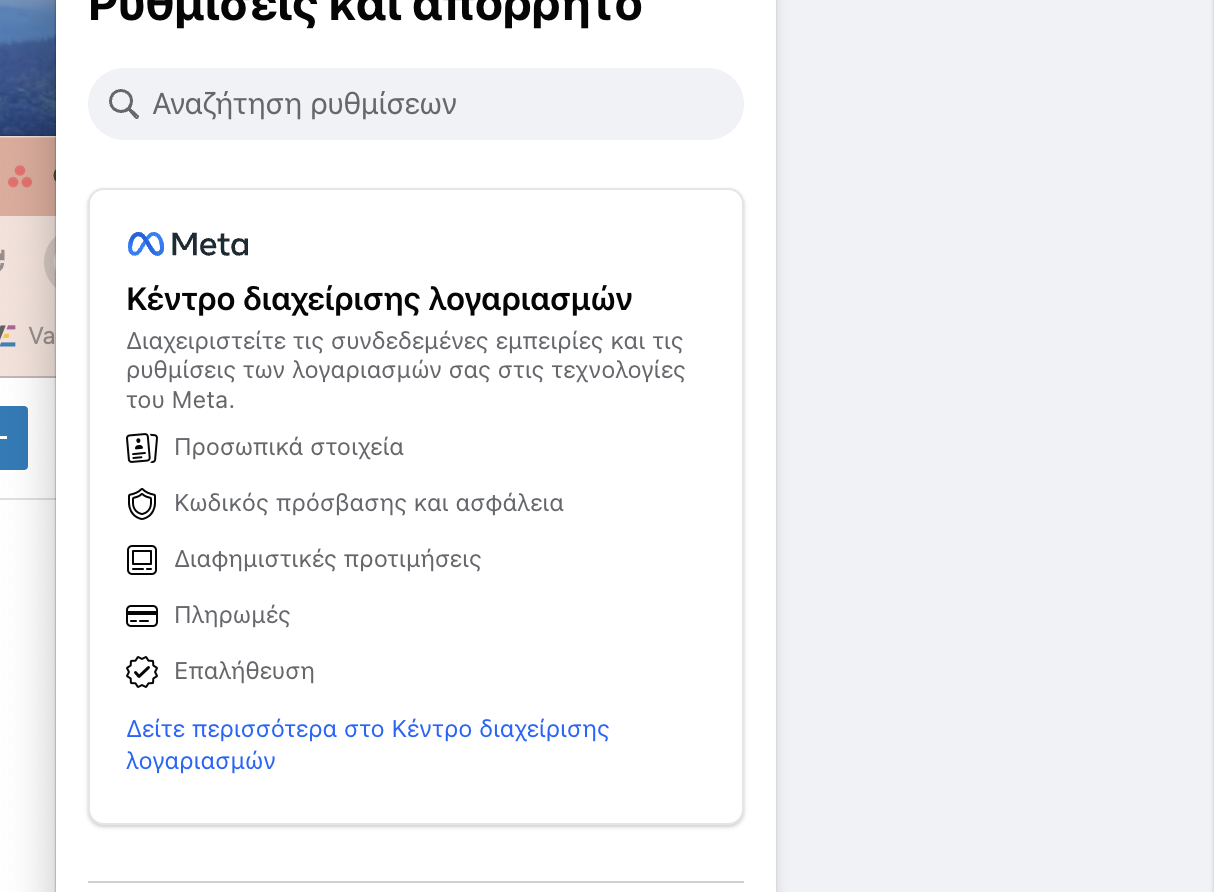
Select Password and security, then Two-factor authentication
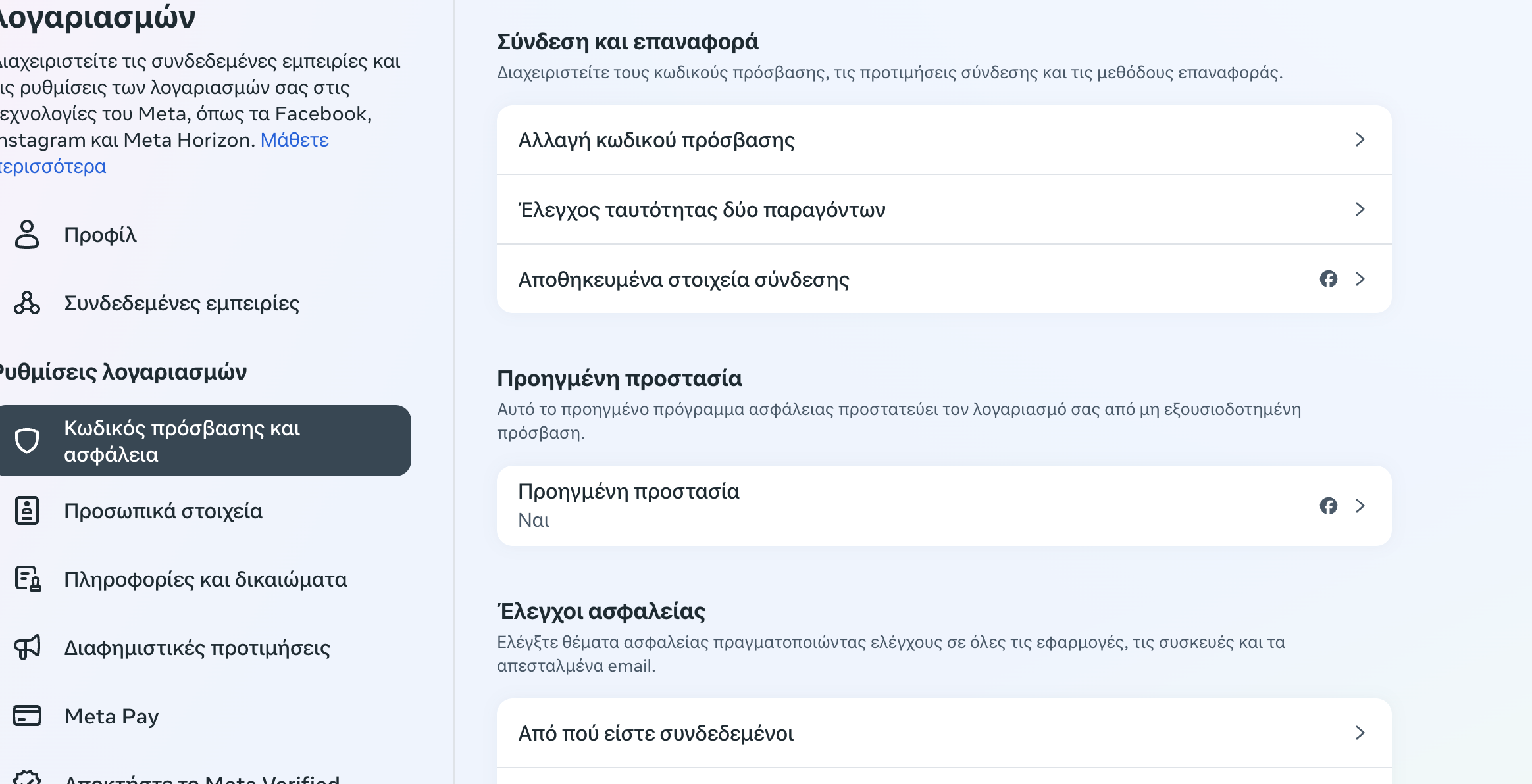
Follow the instructions to complete the setup.
Choose the method you want (SMS or app) and carry on from there. For better security and convenience, we recommend the Google Authenticator method.
Facebook Account Hacking with the SMS Method
One method hackers use is to exploit two-factor authentication by SMS. They repeatedly request a code until the account is locked. They then submit a fake ID with your details and take control of the account.
Of course, this only works if they know the username, email or phone number linked to the account, as well as the full name used on the social network. You can see why SMS verification is so risky.
Google Authenticator and 2FA: The Solution
The solution is Google’s app or a similar one. It is a mobile app that generates one-time codes (OTP) for two-factor authentication (2FA). 2FA is a security measure that adds an extra layer of protection to your accounts, requiring both a password and a code from an app or device to log in.
How Does It Work with Facebook?
- Install Google Authenticator: Download and install the app from the App Store or Google Play.
- Turn on two-factor authentication on Facebook: Instructions are given above
- Connect Facebook to Google Authenticator: Open the Google Authenticator app and tap “+” to add a new account. Scan the QR code shown on Facebook or enter the setup key provided.
- Use Google Authenticator to log in to Facebook: When you log in to Facebook, you will be asked to enter the 6-digit code shown in the Google Authenticator app. The code refreshes regularly, so make sure you use the latest one.
Advantages of using it:
- Stronger security: Google Authenticator makes it much harder for hackers to get into your Facebook account, even if they have your password.
- Easy to use: The Google Authenticator app is easy to use and needs no technical knowledge.
- Free: The Google Authenticator app is available free of charge on the App Store and Google Play.
Watch a video on how to use it.
Tips for Using Google Authenticator
- Back up your recovery codes: Facebook gives you recovery codes when you set up 2FA. Keep them somewhere safe in case you lose your phone or access to the Google Authenticator app.
- Install Google Authenticator on several devices: You can install Google Authenticator on several devices, so you can get your codes even when you don’t have your main phone with you.
- Never share your codes with anyone: The codes shown in the Google Authenticator app are confidential and must not be shared with anyone.
At WebMate, with security and reliability in mind, we strongly recommend Google Authenticator for setting up 2FA (two-factor authentication) and for secure Facebook & Instagram advertising. SMS is an alternative, but we often see problems with sending and receiving codes by text message.
Two-Factor Protection Everywhere
Turning on 2FA is one of the best ways to protect your account from unauthorised access. We recommend enabling 2FA on all your social media accounts and on any other websites and apps that support it, including logging in to your e-shop
Frequently Asked Questions
How does Google Authenticator work?
Google Authenticator generates one-time codes (TOTP – Time-based One-Time Password) using the HMAC-SHA1 algorithm. When you enable 2FA on a service, the app and the server share a secret key. From then on, both generate the same 6-digit code every 30 seconds, using the current Unix timestamp and the secret key. It needs no internet to work, only the correct time on your phone.
Is Google Authenticator free?
Yes, 100% free on both iOS and Android. It has no in-app purchases, ads or subscription. It is available from the Apple App Store and Google Play Store. Since April 2023 it also supports free cloud sync through your Google Account.
How do I enable 2FA on Facebook in 2026?
Settings → Accounts Center → Password and security → Two-factor authentication → choose the account → choose Authentication app (recommended) → scan the QR code with Google Authenticator → enter the 6-digit code to confirm → save your recovery codes. IMPORTANT: DON’T choose SMS, as it is less secure because of SIM swap attacks.
What happens if I lose my phone?
Since April 2023 Google Authenticator has cloud sync, so if you are signed in with your Google account, your keys are safe. Also, always keep the recovery codes each service gave you (Facebook, Google, etc.); with these you can log in even without the authenticator app. For maximum security, install Google Authenticator on 2 devices.
Google Authenticator vs Authy: which is better?
Google Authenticator: simpler, mass-market, with cloud sync since 2023. Authy: better for power users who want advanced features (encrypted backups, multi-device sync, optional PIN protection). For most users Google Authenticator is enough. For those who want advanced features, Authy is a good choice. Bear in mind that since March 2024 Authy no longer has a desktop app, only a mobile one.
What are passkeys and how do they differ from 2FA?
Passkeys are cryptographic keys stored on your device that replace both your password and 2FA. You log in with Face ID / Touch ID / device PIN. Advantages: phishing-proof (they cannot be stolen), no SIM swap risk, and a better user experience. Facebook has supported passkeys since 2025 (in its iOS and Android apps); whenever possible, use them instead of 2FA.
Is SMS 2FA secure?
No, it is the least secure type of 2FA. It is vulnerable to: (1) SIM swap attacks, (2) SS7 protocol attacks (interception), (3) SMS bombing to lock you out. Since 2017 NIST (the US National Institute of Standards and Technology) has classed SMS as a ‘restricted’ method, meaning it discourages its use. Use an authenticator app or a passkey.
Can I use Google Authenticator on several devices?
Yes, in 2 ways: (1) Cloud Sync (since Apr 2023): sign in with the same Google account on several devices and your keys sync automatically. (2) Manual QR scan: when setting up 2FA, scan the QR code with ALL your devices before tapping ‘Done’. For maximum security, install it on 2 or more devices.
What do I do if Google Authenticator shows a wrong code?
It is usually a time sync issue. Fix: tap the profile icon → Settings → Time correction for codes → Sync now. This syncs the app’s time with Google’s servers. If it keeps giving wrong codes, check that your phone’s date and time are correct (Settings → Date & Time → Automatic).
Is 2FA mandatory on Facebook?
For most users 2FA is optional. Facebook does, however, require it for high-risk accounts through Facebook Protect (e.g. journalists, public figures, activists), and in a Business Portfolio admins can make it mandatory for everyone with access. If you manage a Page or ads, turn it on without fail.



Leave a comment